Build and Scale Faster
150+ products shipped for startups and enterprises by engineers focused on real outcomes.
"Their ability to quickly understand an unfamiliar use case and respond creatively to it is impressive."

Anonymous
Executive, Pured Disc Golf

"TechnBrains resolved challenges efficiently and turned my vision into a solid, functional product with a strong foundation."

Jalen Gibbs
Founder, STREAMLINE LIVE
"The talent they provided was solid, but more importantly, they were quick to align with our way of working."

Nancy Snyder
Managing Director, MimeCast
Our trusted clients


Start Your Product Journey Today
Turn your idea into a working product. Share a few details and we'll help define the roadmap, timeline, and execution approach.
How To Turn Off In App Purchases On iPhone & Android Devices
Overview: You can easily turn on or turn off in app purchases on your Apple or Android devices. These can be divided into four categories: Auto-renewable and non-renewing subscriptions, consumable and non-consumable. Disabling them can help prevent accidental purchases or overspending on apps, especially if children are using your device. Both the Google Play Store and Apple App Store have...


Updated Aug 16, 2023
Overview: You can easily turn on or turn off in app purchases on your Apple or Android devices. These can be divided into four categories: Auto-renewable and non-renewing subscriptions, consumable and non-consumable. Disabling them can help prevent accidental purchases or overspending on apps, especially if children are using your device. Both the Google Play Store and Apple App Store have built-in payment systems that connect directly to your bank account. To avoid accidental purchases, we will show you how to turn them off and add authentication before making any purchases.
In-app purchases are commonly used by apps and games to sell additional content or services, like paid versions, feature unlocks, special items, or ad removal. This way, developers can earn extra money by encouraging users to buy content and upgrade to paid versions.
An in-app purchase is any additional purchase made within an app. You can turn off in-app purchases on Apple and Android devices to resist the temptation to spend money while using Apple and android apps and to prevent kids from making unauthorized purchases.
We are well equipped with all the necessary information about in-app purchases that you might require. Without further ado, let us get into how to turn them off in iPhone and android.
In-app purchases
It is common for apps to offer paid versions that come with many benefits. Yet, it is essential to keep track of your in-app purchases to avoid overspending and draining your bank account. Luckily, we have got you covered with some helpful tips on how to turn them off on both Google and Apple app stores.
To add more, we will provide you with some useful advice on how to prevent your children from making unauthorized purchases on your device. With our guidance, you can enjoy your favorite apps without any financial worries.
Stats
- The whole mobile app market is expected to continue expanding. In 2023, sales from the market are projected to reach an astounding $935 billion.
- In Q1 2021, sales on Google Play reached $36.7 billion, while sales on the Apple App Store reached $31.8 billion.
- By 2025, consumer spending on the App Store will be close to $200 billion.
- Google Play generates 98% of its revenue from free apps.
- One of the most popular methods of monetization is in-app purchases. It is reportedly used by 50% of non-game apps and 79% of game apps.
- 2% of mobile app earnings come from in-app purchases, compared to 14% from ad-based revenue and 37.8% from paid app downloads.
- Globally, users spend $380 billion on in-app purchases.
How to turn off In-App Purchases on iPhone
To turn off in app purchases iPhone follow the steps below:
1. Click on the Settings icon on your iPhone
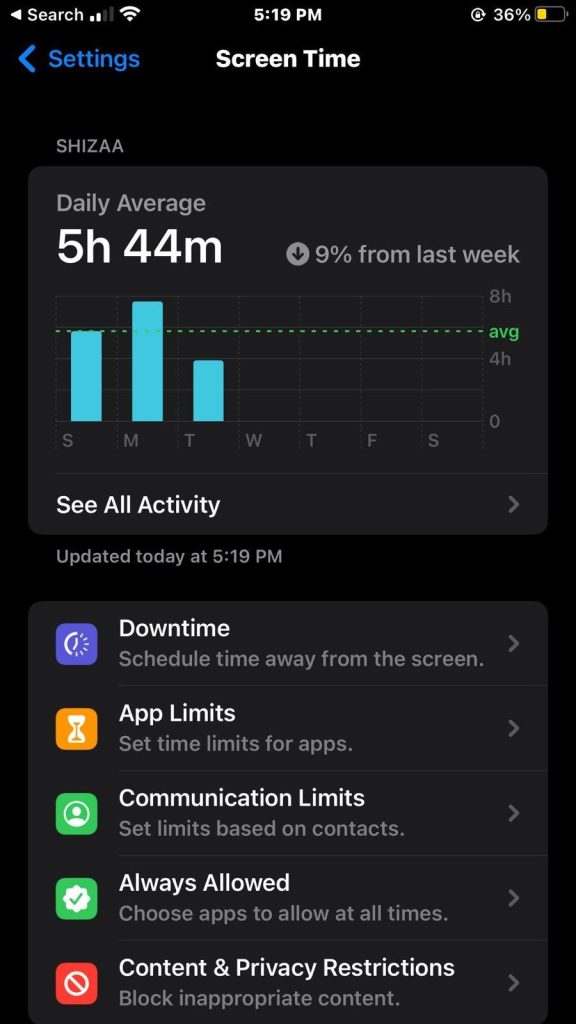
2. Tap Screen Time, and then click on Content & Privacy Restrictions.
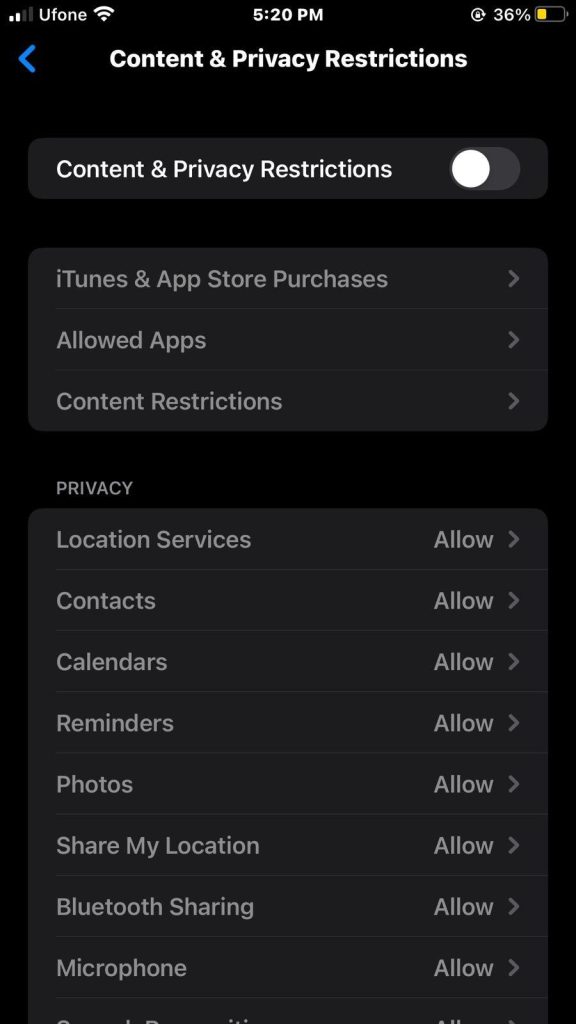
3. Tap the slider to Enable Content & Privacy Restrictions.
4. Once enabled, it will turn green.
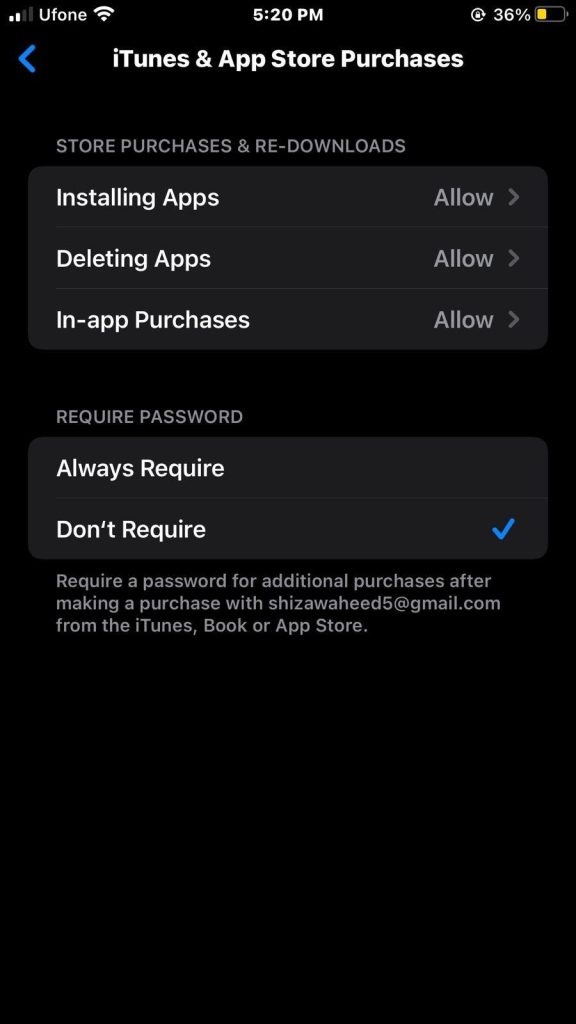
5. Then, tap on iTunes & App Store Purchases.
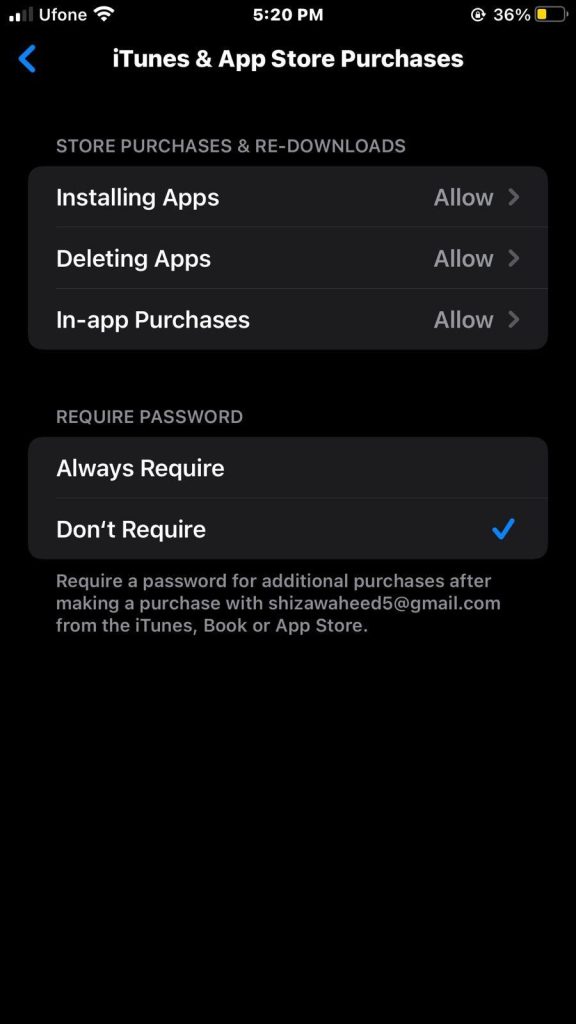
6. Select do not allow for In app Purchases.
How to Disable In-App Purchases on Android
To turn off in-app purchases android follow the steps below:
1. Tap on the Google Play Store app icon on your android smartphone.
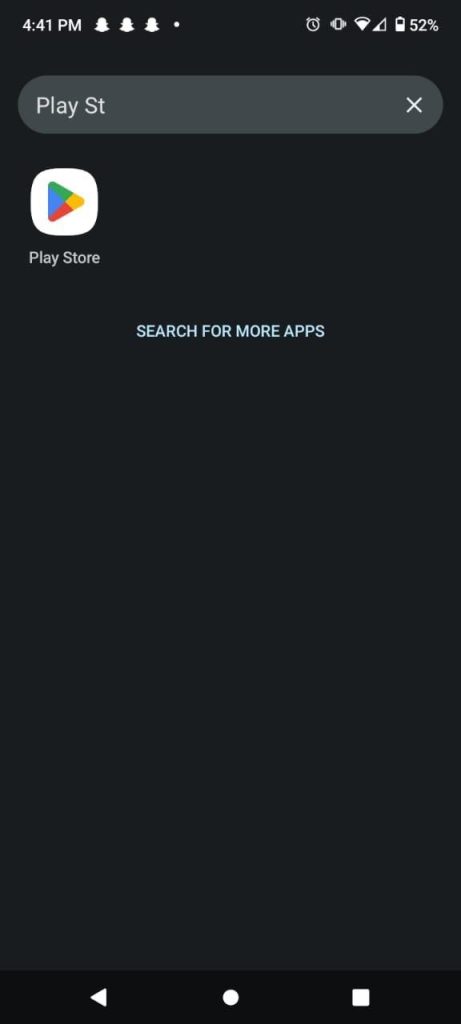
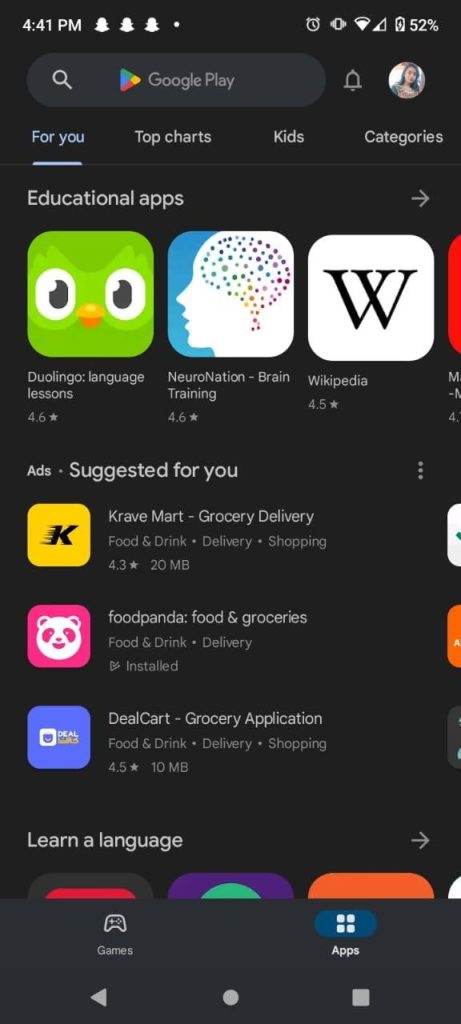
2. Once you are in the app, tap the profile icon on the top left corner.
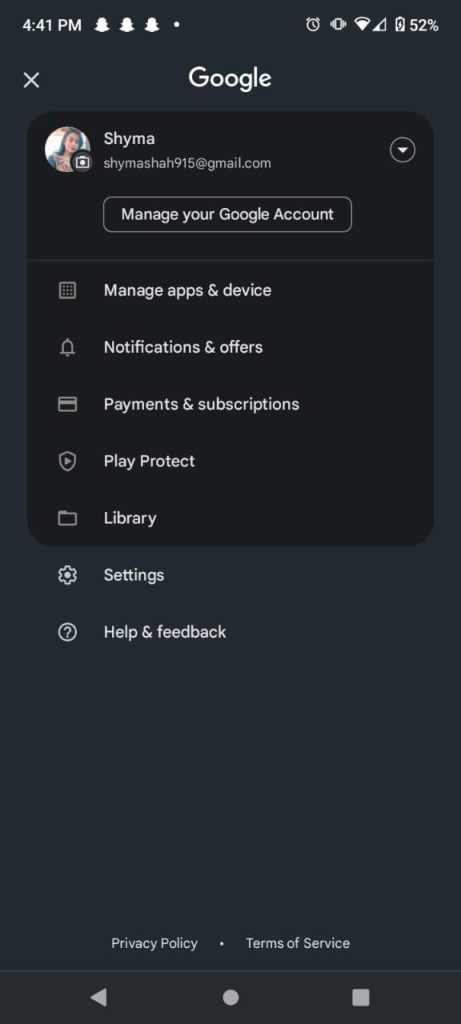
3. From the pop-up menu, select Settings.
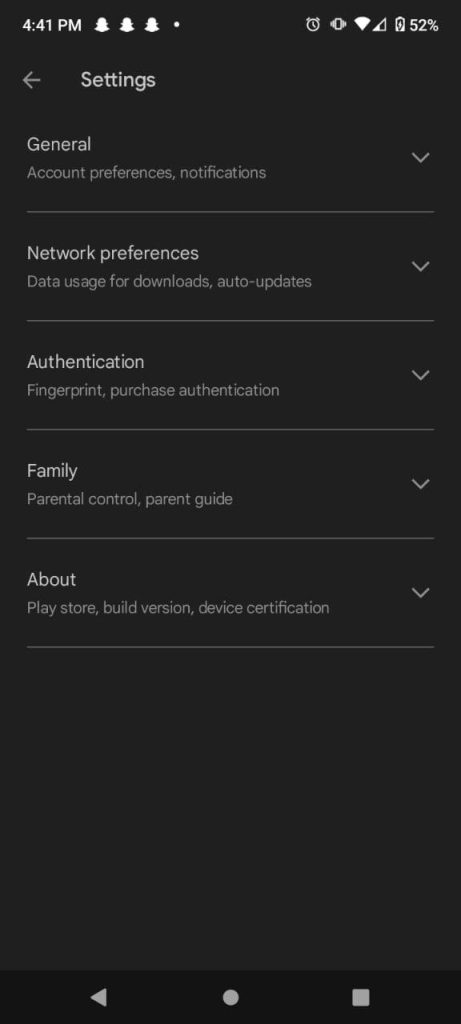
4. Tap Authentication, followed by Require authentication for purchases, on the Settings page.
5. Then select For all purchases from Google Play on this device from the list of options.
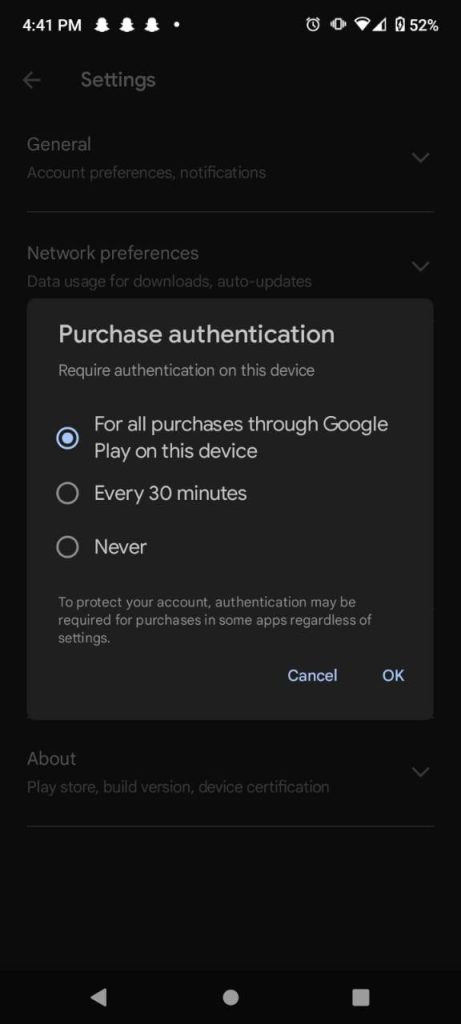
6. Enter your Google password when prompted.
After making this change, whenever someone tries to make a purchase from Google Play on your Android device, they will be required to enter their username and password. This enhances the security of your device and prevents unauthorized and accidental purchases.
The four types:
App publishers often use multiple types of in-app purchases to generate revenue.
1. Auto-renewable subscriptions
According to this IAP model, users must pay recurring fees in order to access certain services, features, or content within an app. Until they decide to discontinue their subscription, users are automatically charged each pay cycle.
Example: An automated monthly subscription to Netflix.
2. Non-renewing subscriptions
A non-renewing subscription, on the other hand, is not renewed automatically. For a brief time only, this in-app purchase model offers services or content. Once the current subscription expires, users will need to buy a new subscription if they wish to keep access.
Example: A one-time 6-month subscription of PlayStation Plus & Xbox Live.
3. Consumable
Consumable purchases eventually run out when the user consumes them. To continue receiving the same benefits after using up all of a consumable purchase, the player must make another consumable IAP purchase.
Example: In game currency and ad removal.
4. Non-consumable
When a user makes a non-consumable purchase, it is permanently available without expiration. These purchases usually consist of premium features.
Example: Extra App Features.
How to Request a Refund for In-App Purchases from Apple
In the past, it was uncertain if you would be successful in appealing in-app purchases. Apple has no means of knowing that a 6-year-old as opposed to a 36-year-old who is now trying to avoid paying the bill made the purchases unintentionally.
However, Apple has simplified the procedure. Refer to the directions on this Apple website to submit a refund request. You will require your order number, which you may locate by following the directions in the sections above.
There is no assurance that you will get every purchase reimbursed; for instance, if Apple notices that you frequently make purchases and subsequently request refunds, they could be less inclined to do so; still, it never hurts to try.
Tips for Managing In-App Purchases
Managing in-app purchases effectively requires a combination of awareness, control, and responsible usage. Here are some valuable tips to help you stay on top of your in-app spending:
1. Enable Parental Controls
If you are a parent or guardian, make use of the parental control features available on both iPhone and Android devices. Set up restrictions to prevent unauthorized or excessive in-app purchases, especially by children.
2. Familiarize Yourself with Settings
Take the time to explore the settings of each app you use. Some apps offer options to disable or limit in-app purchases directly within their settings, giving you more tailored control.
3. Use App Store Alerts
Configure your device to send alerts for in-app purchases. This way, you will receive notifications each time a purchase is made, allowing you to stay informed and react promptly if any unauthorized transactions occur.
4. Educate and Communicate
If you are sharing your device with family members, especially children, educate them about the importance of responsible in-app purchasing. Encourage open conversations about what is and is not allowed.
5. Use Gift Cards or Store Credit
Consider using app store gift cards or store credit for making in-app purchases. This way, you can limit your spending to the amount available on the card and avoid overspending.
6. Use Family Sharing (iOS) or Google Family Library (Android)
These features allow you to share your purchases with family members without having to make separate purchases for each individual. It can help manage costs and control spending within the family.
By implementing these tips, you’ll be better equipped to manage your IAPs responsibly, avoid overspending, and maintain control over your digital spending habits.
Benefits and Challenges of In-App purchases
IAPs refer to the ability to buy digital content or services within a mobile app or online platform. These purchases have become a prominent monetization strategy for app developers, especially in the world of mobile gaming and various subscription-based services. There are several benefits and challenges associated with in-app purchases:
Benefits
- Revenue Generation: In-app purchases can significantly boost revenue for developers. Users are often willing to spend money on virtual goods, extra features, or premium content, which can lead to a steady stream of income.
- Free-to-Play Model: In app purchases allow developers to offer apps free, attracting a larger user base. This “freemium” model encourages more users to try the app, potentially leading to higher conversion rates for in-app purchases among engaged users.
- Personalization and Engagement: IAPs enable users to customize their experience by purchasing virtual goods or premium content, enhancing engagement and increasing their connection to the app.
- Monetization of Non-Paying Users: In-app purchases allow developers to monetize users who might not be willing to pay for the app upfront. This widens the potential customer base and revenue opportunities.
- Continuous Content Updates: Developers can continue adding new content, features, and items that users can purchase, leading to a sustained interest in the app over time.
- Cross-Promotion: Developers can promote other IAPs within the app itself, leading to increased visibility and potential cross sales.
Challenges
- User Perception and Trust: Some users may view IAPs as exploitative or deceptive, especially if they feel pressured to spend money to progress or enjoy the app fully. This can erode trust and damage the app’s reputation.
- Monetization Balance: Finding the right balance between offering valuable content free and encouraging in-app purchases can be challenging. Overly aggressive monetization strategies can turn users away.
- Complexity and Development Costs: Implementing in-app purchase systems can be technically complex and time-consuming. Developers need to consider security, payment gateways, and user account management.
- Market Saturation: In some industries, such as mobile gaming, there is a high level of competition, leading to market saturation. It can be difficult to stand out and attract users who are willing to make IAPs.
- Balancing Gameplay and Monetization: In games, balancing gameplay to avoid making it pay-to-win (favoring players who spend money) while still encouraging IAPs can be a delicate task.
Wrapping it up
In conclusion, in-app purchases offer significant benefits for revenue generation and user engagement, but they also come with challenges related to user perception. Make sure to follow the steps above to disable them on iPhone and Android. Successful implementation requires careful consideration and a focus on creating value for users.
FAQs
What does in app purchases mean?
They refer to transactions made within a mobile application, typically a smartphone or tablet app. These purchases can include a wide range of digital goods or services, such as virtual items, additional content, premium features, subscriptions, and more. Users can buy these items directly from within the app using various payment methods.
Does IAPs cost money?
Yes, they usually involve spending money. The items or services you buy within the app have associated costs. These costs can vary depending on what you’re purchasing and the app you’re using.
How to turn on in-app purchases?
They are generally enabled by default on most devices. However, if you’ve disabled them and want to turn them on:
- On iOS: Go to “Settings” > “Screen Time” > “Content & Privacy Restrictions” > “iTunes & App Store Purchases.” Then, select “In-app Purchases” and choose “Allow.”
- On Android: The process can vary slightly depending on the device manufacturer and version of Android, but typically, you would go to “Settings” > “Apps” > [Select App] > “Permissions” and enable “In-app purchases.”
How to turn off in app purchases?
If you want to disable in-app purchases to prevent accidental purchases:
- On iOS: Go to “Settings” > “Screen Time” > “Content & Privacy Restrictions” > “iTunes & App Store Purchases.” Then, select “In-app Purchases” and choose “Don’t Allow.”
- On Android: As with enabling in-app purchases, the process can vary, but it generally involves going to “Settings” > “Apps” > [Select App] > “Permissions” and disabling “In-app purchases.”
How to use Apple Cash for IAPs?
In supported apps where Apple Pay is available as a payment option, an Apple Pay Cash credit balance can be used to make payments, however it cannot be used to make purchases from the iTunes Store, App Store, or iBooks Store.
How to use Apple Gift Card for IAPs?
Steps to use an Apple Gift Card:
- On iOS: Open the App Store, go to your profile (top right corner), and tap “Redeem Gift Card or Code.” Enter the gift card code, and the balance will be added to your Apple ID. You can then use this balance for in-app purchases.
- On Mac: Open the App Store, click on your profile, and then click “Redeem Gift Card or Code.” Enter the code to add the balance to your Apple ID.
In This Article

Blocked by Backlog or Missed Deadlines?
Senior developers who build, fix, and ship, without slowing your team down.