Build and Scale Faster
150+ products shipped for startups and enterprises by engineers focused on real outcomes.
"Their ability to quickly understand an unfamiliar use case and respond creatively to it is impressive."

Anonymous
Executive, Pured Disc Golf

"TechnBrains resolved challenges efficiently and turned my vision into a solid, functional product with a strong foundation."

Jalen Gibbs
Founder, STREAMLINE LIVE
"The talent they provided was solid, but more importantly, they were quick to align with our way of working."

Nancy Snyder
Managing Director, MimeCast
Our trusted clients


Start Your Product Journey Today
Turn your idea into a working product. Share a few details and we'll help define the roadmap, timeline, and execution approach.
How to develop a MERN Stack Application: A Comprehensive Guide
If you are a software developer, you must have heard of the LAMP stack that comprises Linux, Apache, MySQL and PHP. These are open-source components that allow developers to build dynamic websites and web applications. However, in recent years, MERN stack has gained popularity as a development stack that is used to create scalable web and mobile applications. In this...


Updated Nov 13, 2023
If you are a software developer, you must have heard of the LAMP stack that comprises Linux, Apache, MySQL and PHP. These are open-source components that allow developers to build dynamic websites and web applications. However, in recent years, MERN stack has gained popularity as a development stack that is used to create scalable web and mobile applications.
In this comprehensive guide, we will delve into the world of the MERN stack, equipping you with the knowledge and skills needed to excel in web development. The MERN stack, which stands for MongoDB, Express.js, React, and Node.js, is a popular choice for building dynamic and efficient web applications. This guide aims to provide a thorough understanding of each component of the stack and guide you through the process of creating your own MERN-based projects.
What Is MERN Stack?
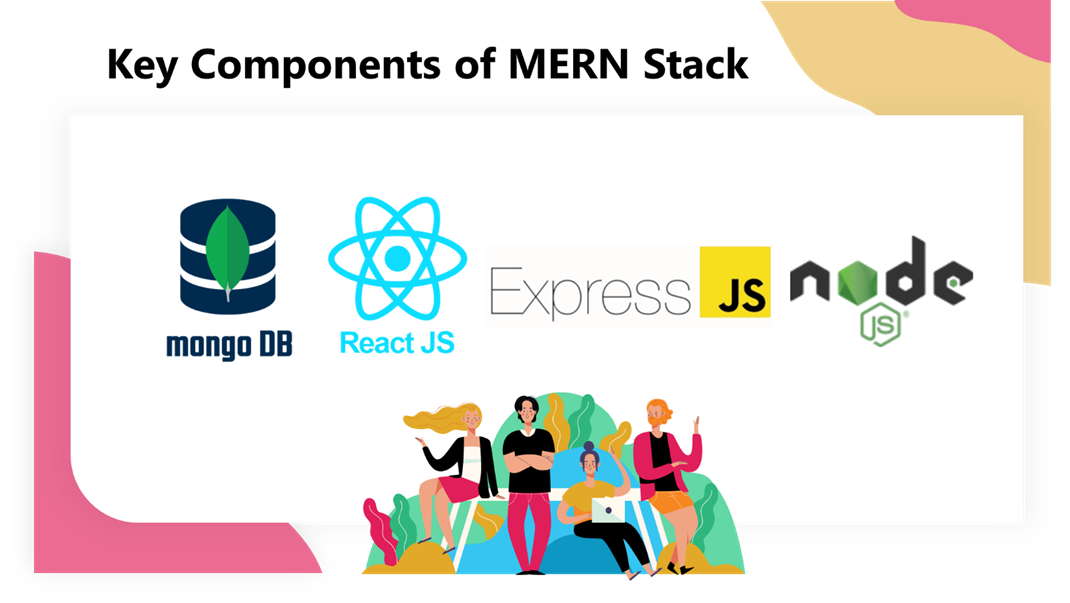
The MERN stack is a full-stack JavaScript solution that encompasses four key technologies:
- MongoDB: A NoSQL database that stores data in a flexible, JSON-like format. It is known for its scalability and high-performance capabilities.
- Express.js: A web application framework for Node.js that simplifies the development of web applications by providing a range of powerful features and tools.
- React: A JavaScript library for building user interfaces. React allows you to create interactive and responsive UI components for your web applications.
- Node.js: A server-side JavaScript runtime environment that enables the execution of JavaScript code on the server. It’s known for its speed and efficiency in handling network requests.
Express JS
For those wondering about “what is express js” we have the answer for you. Express js is a critical component of the MERN stack, which stands for MongoDB, Express.js, React, and Node.js. Each of these technologies serves a specific role within the stack, and Express.js is responsible for handling the back-end aspects of web applications in the MERN architecture.
Here’s how Express.js is related to the MERN stack:
- Back-End Development: Express.js is the back-end framework within the MERN stack. It provides a robust and efficient platform for building the server-side of web applications. It handles tasks such as routing, middleware, database connections, and API development.
- API Creation: In a MERN stack application, Express.js is commonly used to create APIs that allow the front-end, built with React, to communicate with the back-end server. This is crucial for sending and receiving data, user authentication, and other server-related tasks.
- Routing: Express.js enables the definition of routes and endpoints for your application, which helps manage how client requests are processed. This is essential for handling different HTTP methods and serving specific URLs, ensuring a structured and organized application.
- Middleware: Middleware functions in Express.js play a pivotal role in tasks like authentication, logging, error handling, and more. They help enhance the functionality of the server and provide a way to execute code in a specific order within the request-response cycle.
- Integration with MongoDB: In the MERN stack, MongoDB is the NoSQL database used to store and retrieve data. Express.js facilitates the connection to MongoDB, allowing your application to interact with the database seamlessly. This integration is essential for creating dynamic and data-driven web applications.
- Node.js: Express.js is built on top of Node.js, which is the server-side JavaScript runtime. Node.js provides the foundation for Express.js to work, making the MERN stack a full-stack JavaScript solution.
Summary:
Express.js serves as the backbone of the MERN stack, handling the server-side logic, routing, and API creation. It seamlessly integrates with MongoDB, the database component, and works alongside React, the front-end library, to create efficient and dynamic web applications. The MERN stack’s strength lies in its uniform use of JavaScript across the entire stack, making development smoother and more efficient.
JavaScript and MERN Stack
JavaScript and the MERN stack are closely related, with JavaScript serving as the foundational language that ties all the components of the MERN stack together. The MERN stack is named after four key technologies, all of which are closely intertwined with JavaScript:
- MongoDB: MongoDB is a NoSQL database that stores data in a JSON-like format known as BSON (Binary JSON). JavaScript’s object-oriented nature and JSON compatibility make it easy to work with MongoDB, allowing developers to interact with the database using JavaScript.
- Express.js: Express.js is a web application framework for Node.js, which is a server-side JavaScript runtime. Being built on Node.js, Express.js leverages JavaScript to create web servers and handle server-side logic, making it a seamless part of the MERN stack.
- React: React is a JavaScript library for building user interfaces. It allows developers to create interactive and responsive front-end components for web applications. React is a central part of the MERN stack’s front-end development, enabling the creation of user-friendly and dynamic interfaces.
- Node.js: Node.js is a server-side JavaScript runtime environment. It’s used in the MERN stack to run the back-end server and handle tasks such as routing, middleware, and database operations. Node.js’s non-blocking I/O and event-driven architecture make it well-suited for building high-performance web applications.
The strong connection between JavaScript and the MERN stack comes from the use of JavaScript across both the client-side (React) and server-side (Express.js and Node.js) components of the stack. This uniformity in programming language simplifies the development process and reduces the learning curve for developers. JavaScript’s versatility, asynchronous capabilities, and extensive ecosystem of libraries and tools make it a powerful choice for creating web applications within the MERN stack.
Benefits of Using MERN Stack
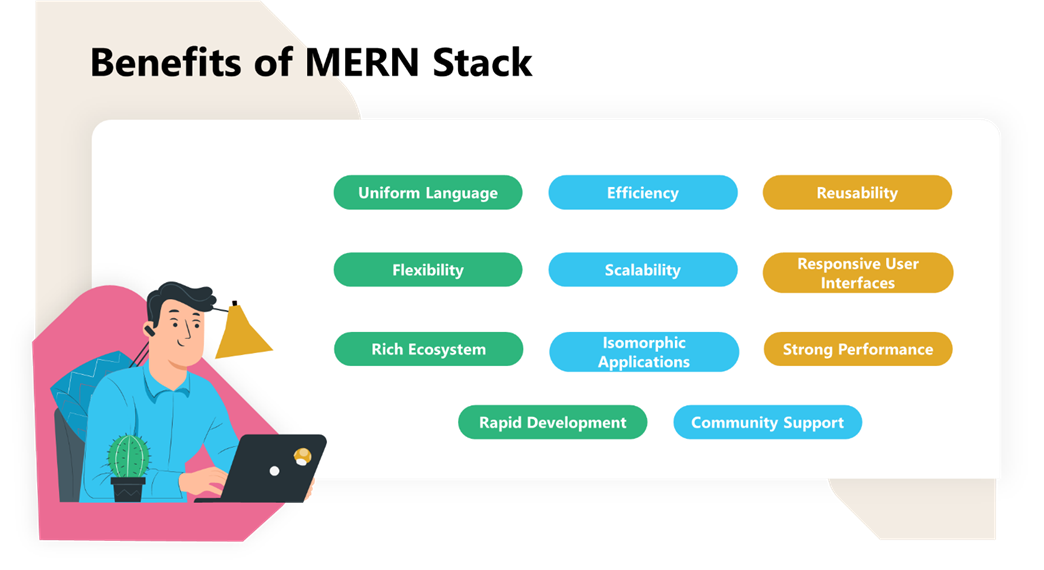
Using the MERN (MongoDB, Express.js, React, Node.js) stack for web development offers several notable benefits:
-
Uniform Language:
The MERN stack is built entirely on JavaScript, allowing developers to use a single programming language across the entire stack. This uniformity simplifies development, as there’s no need to switch between different languages for front-end and back-end tasks.
-
Efficiency:
Node.js, a key component of the MERN stack, is designed for asynchronous, non-blocking I/O operations. This means that web applications built with the MERN stack can handle multiple requests simultaneously, leading to faster and more responsive applications.
-
Reusability:
React, the front-end library in the MERN stack, promotes the creation of reusable UI components. This reusability not only speeds up development but also ensures consistency in the user interface, making it easier to maintain and update your application.
-
Flexibility:
MongoDB, the NoSQL database in the stack, offers a schema-less design, making it easy to adapt your database structure as project requirements evolve. This flexibility is particularly useful for agile development and rapidly changing data models.
-
Scalability:
MongoDB’s scalability is well-suited for applications with growing user bases and large amounts of data. You can easily scale your application horizontally, adding more servers to handle increased traffic.
-
Responsive User Interfaces:
React’s virtual DOM and component-based architecture make it easier to create dynamic and interactive user interfaces. Users experience faster page loading and smooth interactions, enhancing the user experience.
-
Rich Ecosystem:
Both React and Node.js have large and active developer communities. This results in a rich ecosystem of open-source libraries, packages, and tools that can be leveraged to streamline development and solve various challenges.
-
Isomorphic Applications:
MERN stack applications can be built to be isomorphic, meaning they can run on both the server and the client. This can improve SEO and provide faster initial page loads by rendering content on the server side.
-
Rapid Development:
The combination of Express.js and React allows developers to quickly create and prototype web applications. The stack’s simplicity and efficiency enable rapid development cycles, reducing time-to-market.
-
Strong Performance:
Node.js and React are known for their speed and efficiency, ensuring that MERN stack applications perform well even under high traffic loads.
-
Community Support:
The MERN stack has a vast online community, forums, and tutorials. This support network makes it easier to find solutions to common issues and stay up-to-date with best practices.
MERN stack’s benefits include a consistent and efficient development experience, fast and responsive user interfaces, adaptability to changing project requirements, and a strong developer ecosystem. These advantages make it an excellent choice for building modern web applications.
Key Components of MERN Stack
1. MongoDB
MongoDB is a document-oriented NoSQL database that stores data in BSON (Binary JSON) format. This structure allows for flexibility in handling different types of data. MongoDB’s key features include:
- Scalability: MongoDB easily handles large amounts of data and traffic, making it an excellent choice for applications with growing user bases.
- Aggregation Framework: Powerful aggregation capabilities for querying and data analysis.
2. Express.js
Express.js is a minimal and flexible Node.js web application framework. It simplifies the creation of web applications and APIs. Key features of Express.js include:
- Middleware: Easily integrate third-party middleware to enhance your application’s functionality.
- Routing: Define routes to handle different HTTP methods and URLs.
3. React
React is a JavaScript library for building user interfaces. It allows for the creation of reusable UI components, making it easier to manage and maintain your application’s front end. Key features of React include:
- Virtual DOM: Efficient updates and rendering of components for improved performance.
- Component-Based Architecture: Building applications as a collection of components simplifies development and maintenance.
4. Node.js
Node.js is a server-side JavaScript runtime that powers the back end of MERN applications. It offers the following advantages:
Non-Blocking I/O: Node.js is designed for asynchronous, non-blocking I/O operations, ensuring that your applications remain responsive.
Vast Ecosystem: A rich collection of libraries and modules available via npm (Node Package Manager).
Setting Up Your MERN Stack Development Environment
To get started with the MERN stack, you will need to set up your development environment. Here are the steps to follow:
- Install Node.js: Download and install Node.js from the official website.
- Initialize a Node.js Project: Create a new Node.js project using the “npm init” command.
- Set Up MongoDB: Install MongoDB and create a database for your application.
- Create an Express.js Application: Build the back end of your application using Express.js.
- Develop the Front End with React: Design your application’s user interface using React.
- Connect the Front End and Back End: Establish communication between the front end and back end of your application.
Building Your First MERN Stack Application
Creating your first MERN (MongoDB, Express.js, React, Node.js) application is an exciting journey into the world of modern web development. In this guide, we’ll walk you through the essential steps to get started and build your very own MERN application. By the end of this process, you’ll have a functioning web application with a back end and front end, ready to be deployed for the world to see.
Prerequisites
Before you dive into MERN application development, make sure you have the following tools and knowledge:
- Node.js: Ensure you have Node.js installed on your computer. You can download it from the official website.
- Text Editor: Choose a text editor or integrated development environment (IDE) to write your code. Popular options include Visual Studio Code, Sublime Text, or Atom.
- MongoDB: Install MongoDB locally or use a cloud-based MongoDB service like MongoDB Atlas. You’ll need a MongoDB database to store your application’s data.
- Command Line: Familiarize yourself with using the command line or terminal to run commands and navigate through your project.
Step 1—Install Node
To install Node, visit https://nodejs.org/en/ You can choose between the LTS and current versions.
Step 2—Create a New Node Project
Let’s create a project directory for your Node project since you already have Node.js and MongoDB installed. Open a new terminal window and execute the following code to create a new Node project directory in any convenient location on your local machine. Then switch to that directory.
> mkdir myProject && cd myProject
> mkdir server && cd server
To start a new Node.js project, simply copy and paste the following code into a new file:
> npm init -y
A new package.json file will be created, containing information about your app and its dependencies.
Install the dependencies:
> npm install express cors dotenv
The above command uses some important keywords to install the necessary packages that we will use in our project. Here’s what each of these keywords does:
- `express`: This installs the web framework for Node.js. Using this framework will make our life easier.
- `cors`: This installs a package that allows cross-origin resource sharing in Node.js.
- `dotenv`: This installs the module that loads environment variables from a `.env` file into the `process.env` file. This lets you separate configuration files from the code.
To check the installed dependencies, we can refer to the `package.json` file. It should list all the packages along with their versions.
Step 3—Create a Node.js Express Server
Start by creating a file named server.js. Then, type the following code into it and save:
myProject/server/server.js
const express = require("express");
const app = express();
const cors = require("cors");
require("dotenv").config({ path: "./config.env" });
const port = process.env.PORT || 5000;
app.use(cors());
app.use(express.json());
app.use(require("./routes/record"));
// Get MongoDB driver connection
const dbo = require("./db/conn");
app.listen(port, () => {
  // Perform a database connection when server starts
  dbo.connectToServer(function (err) {
if (err) console.error(err);
  });
  console.log(`Server is running on port: ${port}`);
});
Here, we are requiring express and cors to be used. The const port process.env.port will access the port variable from the config.env we require.
Step 4—Install Mongoose and MongoDB
To get started with MongoDB, we will be using the free tier of MongoDB Atlas cloud-based database-as-a-service. It’s the easiest way to get up and running with MongoDB. For the frontend, we will use Mongoose, which is an asynchronous MongoDB object modeling tool.
You can install Mongoose in your Node.js project’s package.json using npm. Simply navigate to your project folder and use the following command to install it:
> npm install mongoose
This command installs Mongoose and the MongoDB driver, allowing Node.js applications to connect to and manipulate data in the database.
Step 5—Connect to MongoDB Database
Open a terminal window in the ‘server’ directory and execute this command to connect to the database:
> touch config.env
To connect to your MongoDB Atlas database, you first need to assign the connection string to a new variable ‘ATLAS_URI’ inside the ‘config.env’ file. To do this, go to your Atlas cluster and click on the ‘CONNECT’ button. This will launch the Cluster Connection Wizard. The Wizard will then guide you through the process of adding your current IP address to the IP Access List and creating a new MongoDB user (if you haven’t created one already). Make sure you note the username and password you use for the new MongoDB user as you’ll need it later.
Next, the Wizard will prompt you to choose a connection method. You need to select ‘Connect Your Application’. Then, when asked to select your driver version, choose ‘Node.js and 3.6 or later’. Finally, copy the provided connection string and paste it into your ‘config.env’ file. Your file should look like the example below:
myProject/server/config.env
ATLAS_URI=mongodb+srv://<username>:<password>@sandbox.jadwj.mongodb.net/employees?retryWrites=true&w=majority
PORT=5000
Note: Replace <username> and <password> with your database credentials.
Then, create a new folder named ‘db‘ under the server directory.
> mkdir db && cd db
Inside it, create a file called conn.js. Here we can add the following code to connect to our database.
> touch conn.js
myProject/server/db/conn.js
const { MongoClient } = require("mongodb");
const Db = process.env.ATLAS_URI;
const client = new MongoClient(Db, {
  useNewUrlParser: true,
  useUnifiedTopology: true,
});
var _db;
module.exports = {
  connectToServer: function (callback) {
client.connect(function (err, db) {
      // Verify we got a good "db" object
   if (db)
   {
     _db = db.db("employees");
     console.log("Successfully connected to MongoDB.");
      }
   return callback(err);
      });
  },
  getDb: function () {
return _db;
  },
};
Step 6—Create the Server API Endpoints/ Routes
After completing the database and server, it’s time to create the Server API endpoints. Start by creating a “routes” folder and adding “record.js” to it. Go back to the “server” directory and create the new directory and file.
> cd ../server && mkdir routes
> touch routes/record.js

copy and paste the provided code into the "record.js" file located in the "routes" folder.

myProject/server/routes/record.js
const express = require("express");
// recordRoutes is an instance of the express router.
// We use it to define our routes.
// The router will be added as a middleware and will take control of requests starting with path /record.
const recordRoutes = express.Router();
// This will help us connect to the database
const dbo = require("../db/conn");
// This helps convert the id from string to ObjectId for the _id.
const ObjectId = require("mongodb").ObjectId;
// This section will help you get a list of all the records.
recordRoutes.route("/record").get(function (req, res) {
let db_connect = dbo.getDb("employees");
db_connect
   .collection("records")
   .find({})
   .toArray(function (err, result) {
  if (err) throw err;
  res.json(result);
   });
});
// This section will help you get a single record by id
recordRoutes.route("/record/:id").get(function (req, res) {
let db_connect = dbo.getDb();
let myquery = { _id: ObjectId(req.params.id) };
db_connect
   .collection("records")
   .findOne(myquery, function (err, result) {
  if (err) throw err;
  res.json(result);
   });
});
// This section will help you create a new record.
recordRoutes.route("/record/add").post(function (req, response) {
let db_connect = dbo.getDb();
let myobj = {
   name: req.body.name,
   position: req.body.position,
   level: req.body.level,
};
db_connect.collection("records").insertOne(myobj, function (err, res) {
   if (err) throw err;
   response.json(res);
});
});
// This section will help you update a record by id.
recordRoutes.route("/update/:id").post(function (req, response) {
let db_connect = dbo.getDb();
let myquery = { _id: ObjectId(req.params.id) };
let newvalues = {
   $set: {
  name: req.body.name,
  position: req.body.position,
  level: req.body.level,
   },
};
db_connect
   .collection("records")
   .updateOne(myquery, newvalues, function (err, res) {
  if (err) throw err;
  console.log("1 document updated");
  response.json(res);
   });
});
// This section will help you delete a record
recordRoutes.route("/:id").delete((req, response) => {
let db_connect = dbo.getDb();
let myquery = { _id: ObjectId(req.params.id) };
db_connect.collection("records").deleteOne(myquery, function (err, obj) {
   if (err) throw err;
   console.log("1 document deleted");
   response.json(obj);
});
});
module.exports = recordRoutes;
It’s time to start your server to test if it’s functional. Open a terminal in the same directory as your server.js file and copy:
> node server.js
If everything goes smoothly, you should be able to view the following output:
Server is running on port: 5000
Successfully connected to MongoDB.
Let’s shift our focus to the front end, now that we’ve successfully wrapped up the back end. This is where we’ll really be able to showcase our creativity and provide an exceptional user experience.
Step 7—Create a React Application
To install your React application, you need to run the create-react-app command in the root directory of your project.
> npx create-react-app client
A new directory will be created for your React frontend app. Navigate to the client folder to view the React application code.
> cd client && ls
To proceed, open the “client” directory and launch a new terminal window. After that, you will need to install two extra dependencies.
> npm install bootstrap
react-router-dom
Bootstrap allows for quick deployment of pre-made templates and components for web applications, eliminating the need to write code from scratch. React–router-dom installs React router components for web applications.
Step 8—Set Up the React Router
To begin setting up the React Router, you should first clear out the contents of the src folder.
> rm src/**/*
Firstly, create a new folder, and then add two additional files named index.js and App.js to the folder.
> touch src/index.js src/App.js
To add the following code, go inside the src/index.js file:
import React from "react";
import ReactDOM from "react-dom";
import App from "./App";
import { BrowserRouter } from "react-router-dom";
ReactDOM.render(
  <React.StrictMode>
<BrowserRouter>
   <App />
</BrowserRouter>
  </React.StrictMode>,
  document.getElementById("root")
);
We use <BrowserRouter> to synchronize our UI with the browser’s URL for seamless component transitions.
Step 9—Create the React Components
To organize our code better, we will create a ‘components‘ folder inside the ‘src‘ directory. For every component we create, we will add a new .js file to this folder. Our app needs to perform three main tasks:
- Create an employee
- Edit employees
- View all employees
To achieve these tasks, we will create four files for each: create.js, edit.js, navbar.js, and recordList.js.
> mkdir src/components
(cd src/components &&
touch create.js edit.js navbar.js recordList.js)
An image of each file will appear as follows:
create.js
The following code will enable users to create new records by submitting a create command to our server.
import React, { useState } from "react";
import { useNavigate } from "react-router";
export default function Create() {
const [form, setForm] = useState({
   name: "",
   position: "",
   level: "",
});
const navigate = useNavigate();
 // These methods will update the state properties.
function updateForm(value) {
   return setForm((prev) => {
  return { ...prev, ...value };
   });
}
 // This function will handle the submission.
async function onSubmit(e) {
   e.preventDefault();
   // When a post request is sent to the create url, we'll add a new record to the database.
   const newPerson = { ...form };
   await fetch("http://localhost:5000/record/add", {
  method: "POST",
  headers: {
    "Content-Type": "application/json",
  },
  body: JSON.stringify(newPerson),
   })
   .catch(error => {
  window.alert(error);
  return;
   });
   setForm({ name: "", position: "", level: "" });
   navigate("/");
}
 // This following section will display the form that takes the input from the user.
return (
   <div>
  <h3>Create New Record</h3>
  <form onSubmit={onSubmit}>
    <div className="form-group">
      <label htmlFor="name">Name</label>
      <input
        type="text"
        className="form-control"
        id="name"
        value={form.name}
        onChange={(e) => updateForm({ name: e.target.value })}
      />
    </div>
    <div className="form-group">
      <label htmlFor="position">Position</label>
      <input
        type="text"
        className="form-control"
        id="position"
        value={form.position}
        onChange={(e) => updateForm({ position: e.target.value })}
      />
    </div>
    <div className="form-group">
      <div className="form-check form-check-inline">
        <input
          className="form-check-input"
          type="radio"
          name="positionOptions"
          id="positionIntern"
          value="Intern"
          checked={form.level === "Intern"}
          onChange={(e) => updateForm({ level: e.target.value })}
        />
        <label htmlFor="positionIntern" className="form-check-label">Intern</label>
      </div>
      <div className="form-check form-check-inline">
        <input
          className="form-check-input"
          type="radio"
          name="positionOptions"
          id="positionJunior"
          value="Junior"
          checked={form.level === "Junior"}
          onChange={(e) => updateForm({ level: e.target.value })}
        />
        <label htmlFor="positionJunior" className="form-check-label">Junior</label>
      </div>
      <div className="form-check form-check-inline">
        <input
          className="form-check-input"
          type="radio"
          name="positionOptions"
          id="positionSenior"
          value="Senior"
          checked={form.level === "Senior"}
          onChange={(e) => updateForm({ level: e.target.value })}
        />
        <label htmlFor="positionSenior" className="form-check-label">Senior</label>
      </div>
    </div>
    <div className="form-group">
      <input
        type="submit"
        value="Create person"
        className="btn btn-primary"
      />
    </div>
  </form>
   </div>
);
}
edit.js
The following code will serve as an editing component for our records. It will use a similar layout to the create component and will eventually submit an update command to our server.
import React, { useState, useEffect } from "react";
import { useParams, useNavigate } from "react-router";
export default function Edit() {
const [form, setForm] = useState({
   name: "",
   position: "",
   level: "",
   records: [],
});
const params = useParams();
const navigate = useNavigate();
 useEffect(() => {
   async function fetchData() {
  const id = params.id.toString();
  const response = await fetch(`http://localhost:5000/record/${params.id.toString()}`);
     if (!response.ok) {
    const message = `An error has occurred: ${response.statusText}`;
    window.alert(message);
    return;
  }
     const record = await response.json();
  if (!record) {
    window.alert(`Record with id ${id} not found`);
    navigate("/");
    return;
  }
     setForm(record);
   }
   fetchData();
   return;
}, [params.id, navigate]);
 // These methods will update the state properties.
function updateForm(value) {
   return setForm((prev) => {
  return { ...prev, ...value };
   });
}
 async function onSubmit(e) {
   e.preventDefault();
   const editedPerson = {
  name: form.name,
  position: form.position,
  level: form.level,
   };
   // This will send a post request to update the data in the database.
   await fetch(`http://localhost:5000/update/${params.id}`, {
  method: "POST",
  body: JSON.stringify(editedPerson),
  headers: {
    'Content-Type': 'application/json'
  },
   });
   navigate("/");
}
 // This following section will display the form that takes input from the user to update the data.
return (
   <div>
  <h3>Update Record</h3>
  <form onSubmit={onSubmit}>
    <div className="form-group">
      <label htmlFor="name">Name: </label>
      <input
        type="text"
        className="form-control"
        id="name"
        value={form.name}
        onChange={(e) => updateForm({ name: e.target.value })}
      />
    </div>
    <div className="form-group">
      <label htmlFor="position">Position: </label>
      <input
        type="text"
        className="form-control"
        id="position"
        value={form.position}
        onChange={(e) => updateForm({ position: e.target.value })}
      />
    </div>
    <div className="form-group">
      <div className="form-check form-check-inline">
        <input
          className="form-check-input"
          type="radio"
          name="positionOptions"
          id="positionIntern"
          value="Intern"
          checked={form.level === "Intern"}
          onChange={(e) => updateForm({ level: e.target.value })}
        />
        <label htmlFor="positionIntern" className="form-check-label">Intern</label>
      </div>
      <div className="form-check form-check-inline">
        <input
          className="form-check-input"
          type="radio"
          name="positionOptions"
          id="positionJunior"
          value="Junior"
          checked={form.level === "Junior"}
          onChange={(e) => updateForm({ level: e.target.value })}
        />
        <label htmlFor="positionJunior" className="form-check-label">Junior</label>
      </div>
      <div className="form-check form-check-inline">
        <input
          className="form-check-input"
          type="radio"
          name="positionOptions"
          id="positionSenior"
          value="Senior"
          checked={form.level === "Senior"}
          onChange={(e) => updateForm({ level: e.target.value })}
        />
        <label htmlFor="positionSenior" className="form-check-label">Senior</label>
    </div>
    </div>
    <br />
       <div className="form-group">
      <input
        type="submit"
        value="Update Record"
        className="btn btn-primary"
      />
    </div>
  </form>
   </div>
);
}
recordList.js
The following code fetches all the records in our database via GET.
import React, { useEffect, useState } from "react";
import { Link } from "react-router-dom";
const Record = (props) => (
<tr>
   <td>{props.record.name}</td>
   <td>{props.record.position}</td>
   <td>{props.record.level}</td>
   <td>
  <Link className="btn btn-link" to={`/edit/${props.record._id}`}>Edit</Link> |
  <button className="btn btn-link"
    onClick={() => {
      props.deleteRecord(props.record._id);
    }}
  >
    Delete
  </button>
   </td>
</tr>
);
export default function RecordList() {
const [records, setRecords] = useState([]);
 // This method fetches the records from the database.
useEffect(() => {
   async function getRecords() {
  const response = await fetch(`http://localhost:5000/record/`);
     if (!response.ok) {
    const message = `An error occurred: ${response.statusText}`;
    window.alert(message);
    return;
  }
     const records = await response.json();
  setRecords(records);
   }
   getRecords();
   return;
}, [records.length]);
 // This method will delete a record
async function deleteRecord(id) {
   await fetch(`http://localhost:5000/${id}`, {
  method: "DELETE"
   });
   const newRecords = records.filter((el) => el._id !== id);
   setRecords(newRecords);
}
 // This method will map out the records on the table
function recordList() {
   return records.map((record) => {
  return (
    <Record
         record={record}
      deleteRecord={() => deleteRecord(record._id)}
      key={record._id}
    />
  );
   });
}
 // This following section will display the table with the records of individuals.
return (
   <div>
  <h3>Record List</h3>
  <table className="table table-striped" style={{ marginTop: 20 }}>
    <thead>
      <tr>
        <th>Name</th>
        <th>Position</th>
        <th>Level</th>
        <th>Action</th>
      </tr>
    </thead>
    <tbody>{recordList()}</tbody>
  </table>
   </div>
);
}
navbar.js
In the navbar.js component, we will create a navigation bar that links to the required components using the following code.
import React from "react";
// We import bootstrap to make our application look better.
import "bootstrap/dist/css/bootstrap.css";
// We import NavLink to utilize the react router.
import { NavLink } from "react-router-dom";
// Here, we display our Navbar
export default function Navbar() {
return (
   <div>
  <nav className="navbar navbar-expand-lg navbar-light bg-light">
    <NavLink className="navbar-brand" to="/">
    <img style={{"width" : 25 + '%'}} src="https://d3cy9zhslanhfa.cloudfront.net/media/3800C044-6298-4575-A05D5C6B7623EE37/4B45D0EC-3482-4759-82DA37D8EA07D229/webimage-8A27671A-8A53-45DC-89D7BF8537F15A0D.png"></img>
    </NavLink>
    <button
      className="navbar-toggler"
      type="button"
      data-toggle="collapse"
      data-target="#navbarSupportedContent"
      aria-controls="navbarSupportedContent"
      aria-expanded="false"
      aria-label="Toggle navigation"
    >
      <span className="navbar-toggler-icon"></span>
    </button>
       <div className="collapse navbar-collapse" id="navbarSupportedContent">
      <ul className="navbar-nav ml-auto">
        <li className="nav-item">
          <NavLink className="nav-link" to="/create">
            Create Record
          </NavLink>
        </li>
      </ul>
    </div>
  </nav>
   </div>
);
}
Now, add the following code to the src/App.js file that we created earlier.
import React from "react";
// We use Route in order to define the different routes of our application
import { Route, Routes } from "react-router-dom";
// We import all the components we need in our app
import Navbar from "./components/navbar";
import RecordList from "./components/recordList";
import Edit from "./components/edit";
import Create from "./components/create";
const App = () => {
return (
   <div>
  <Navbar />
  <Routes>
    <Route exact path="/" element={<RecordList />} />
    <Route path="/edit/:id" element={<Edit />} />
    <Route path="/create" element={<Create />} />
  </Routes>
   </div>
);
};
export default App;
Step 10—Testing
It looks like you have finished creating the necessary components, and have successfully connected your React application to the back end using the fetch method. This method provides a cleaner and simpler way to handle HTTP requests, which is used in create.js, edit.js, and recordList.js files to manage HTTP requests.
To start your application, please follow these steps: open a new terminal window and navigate to the ‘server’ directory. Then execute the following command:
> node server.js
Open a new terminal window in the client directory and run the following command:
> npm start
You should be able to view the application in your browser.
MERN Stack Applications

1. Facebook
One of the most famous examples of a MERN stack application is “Facebook.” Facebook is a social media platform that utilizes the MERN stack for its web development. React is used for building the user interfaces, while Node.js, Express.js, and MongoDB work together on the server side to handle data storage, server logic, and API interactions. This combination of technologies has contributed to Facebook’s success in delivering a highly interactive and data-intensive web application, serving billions of users worldwide.

2. Instagram
Instagram is a prominent MERN stack application that focuses on photo and video sharing, as well as social networking. It utilizes MongoDB to store user data and media files efficiently. Express.js handles the routing and middleware, ensuring secure and smooth interactions between users and the platform. React, as the front-end library, plays a crucial role in creating a highly interactive and responsive user interface. This combination of MERN components allows Instagram to deliver features like real-time photo and video uploads, comments, likes, and a seamless user experience.

3. WhatsApp
WhatsApp, a widely-used messaging application, relies on the MERN stack for its web application. The stack enables real-time communication, ensuring instant message delivery and synchronization across devices. MongoDB serves as the data store for user messages and multimedia content. Express.js manages routes and handles API requests, allowing for secure message transmission. React plays a role in crafting an intuitive and user-friendly chat interface. The MERN stack is well-suited for managing vast volumes of real-time data and ensuring a reliable messaging experience.
4. Netflix
Netflix, a leading streaming platform, chooses React for building its user interfaces. This selection of React enables Netflix to provide a responsive, user-friendly experience to its subscribers. The React library allows for the creation of dynamic and interactive user interfaces, ensuring that users can seamlessly navigate the vast library of content, personalize their viewing experience, and enjoy high-quality streaming. While Netflix doesn’t utilize all MERN components, React, as part of the MERN stack, contributes to an engaging and visually appealing user interface.
5. Airbnb
Airbnb, a global online marketplace for lodging and travel, employs the MERN stack for its web development. React is instrumental in creating the user interface, which allows users to search, view, and book accommodations worldwide. Node.js and Express.js power the server-side, handling user requests and database interactions efficiently. MongoDB stores a vast amount of listing and user data. A vacation rental app like Airbnb showcases the scalability of the MERN stack, enabling millions of property listings and facilitating bookings across different regions, all while delivering a user-friendly and intuitive experience.
These MERN Stack applications underscore the versatility and scalability of the MERN stack. Whether it’s managing multimedia content, facilitating real-time messaging, providing streaming services, or offering a global travel marketplace, the MERN stack’s combination of MongoDB, Express.js, React, and Node.js contributes to the success and user engagement of these high-performance web platforms, which cater to millions or even billions of users worldwide.

6. 5 Spheres of Fit – MERN Stack App
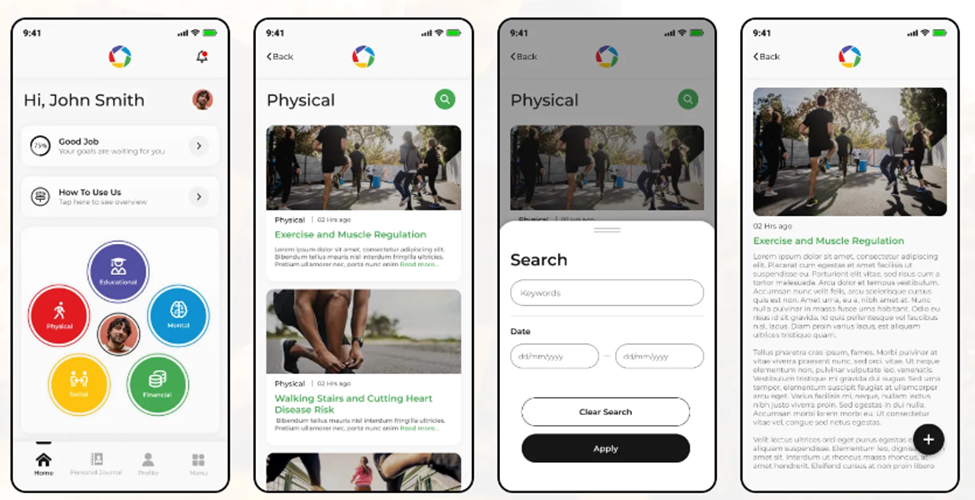
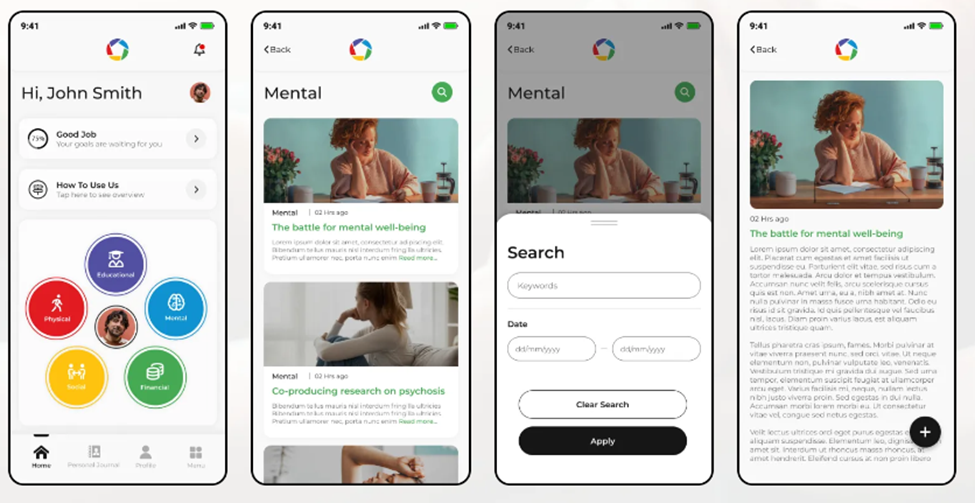
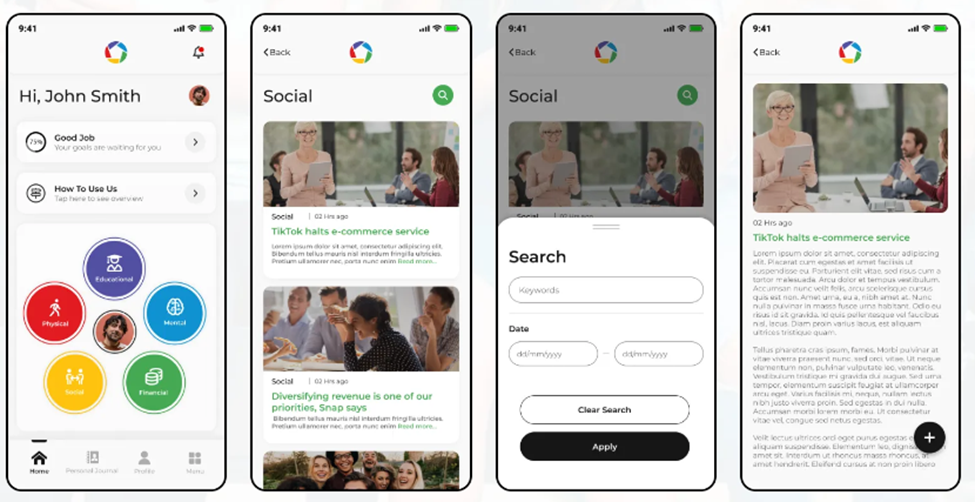
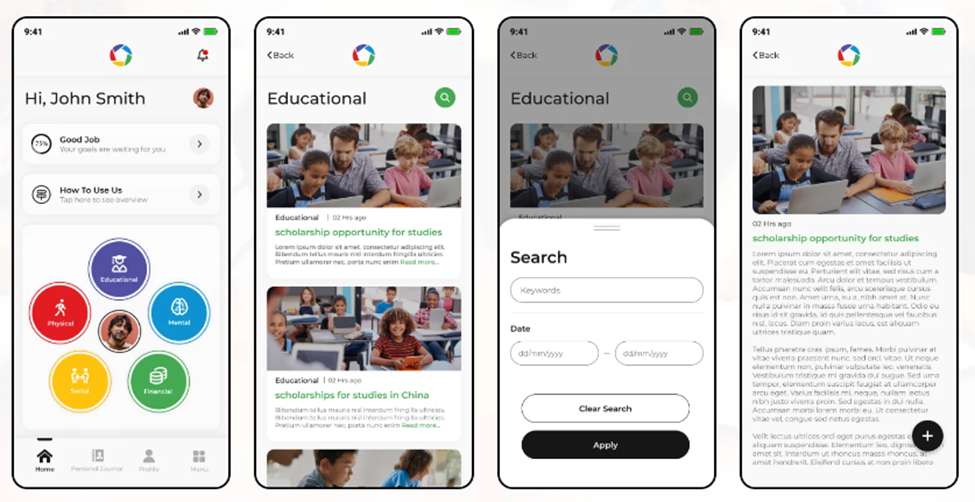
The 5 Spheres of Fit app, developed by TechnBrains in the wellness industry, embodies a holistic approach to wellness. In line with its mission to enhance fitness and overall life wellness, the app has been meticulously crafted using cutting-edge technologies and services. TechnBrains tackled various challenges, such as data security, user engagement, content curation, interdisciplinary expertise, and monetization strategy, to create a robust and user-friendly platform. It focuses on five key areas:
Physical
Mental
Social
Financial
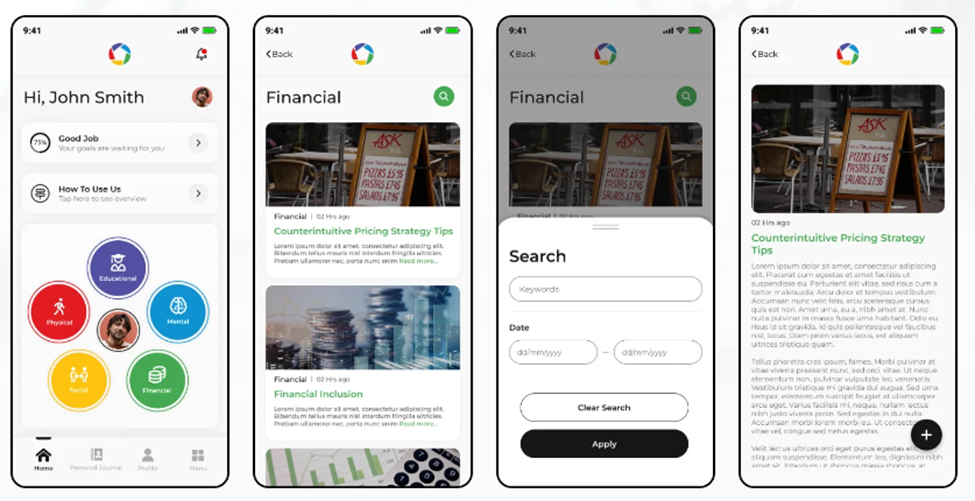
Educational spheres

Wrapping it up
In this comprehensive guide, we’ve explored the MERN stack, its components, and the benefits it offers for web development. By following the steps outlined in this guide, you can create your own MERN-based projects and build high-performance web applications. Whether you’re a beginner or an experienced developer, or looking to hire app developers mastering the MERN stack is a valuable skill that can open up a world of possibilities in web development. Good luck with your MERN journey!
In This Article

Blocked by Backlog or Missed Deadlines?
Senior developers who build, fix, and ship, without slowing your team down.